Getting Started With Groupify: Your First 10 Minutes
Groupify Team
Sep 8, 2026
Getting Started With Groupify: Your First 10 Minutes
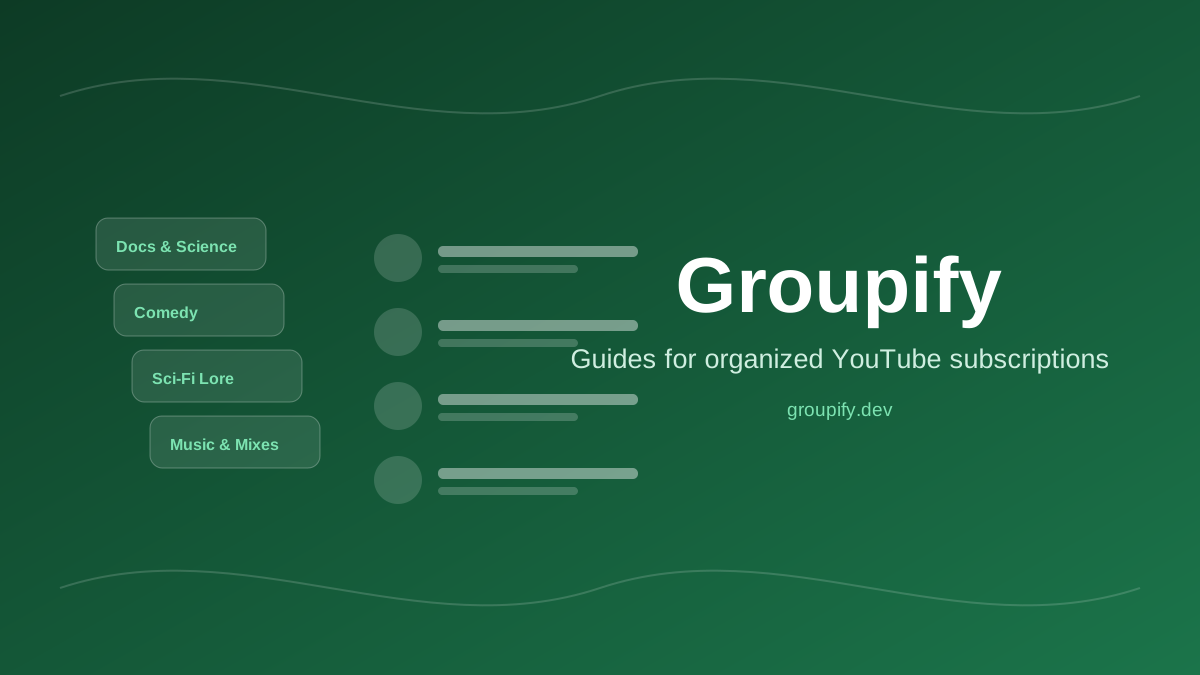
If you have ever opened your YouTube subscriptions sidebar and quickly realized it had become a rolling news feed of every channel you ever showed interest in, this guide is for you. Groupify is a channel organizer that lets you arrange YouTube subscriptions into folders — if you look above, it has nested groups, so that the entirety of YouTube possible projects can be organized around an approach that works for your projects, family, or mindset... rather than by whatever YouTube "watch history" decisions for you.
Here is how to go from a fresh account to a working system in about ten minutes. No credit card, no downloads required — though there is an optional browser extension this guide covers later that makes step 3 even easier.
1. Create your account and workspace
Go to groupify.dev and tap on "Register" to create your account. Every account comes with its own workspace, which is the home of all of your channels and groups. From the moment you log into your dashboard, you are the administrator of your own space: nothing here is public until you decide to share it; nothing about your account or workspace is needed for other users to browse your groups with you — you have full power over all of it.
The dashboard is where you will spend most of your time. Think of it as a control room rather than a social feed. There are no autoplaying video previews here, no recommendation engine running in the background, just the tools for watching your watchlist.
2. Make your first group
From your dashboard, click "Create group". You will be asked for two main things:
- A name. Pick a name that will bring to mind the purpose of the group when you see it months later — a name like "Morning Tech", "Weekend Cooking", or "Rust Tutorials" is going to be better than a label like "New group 1".
- An icon. A quick visual tag helps you identify your group at a glance while viewing your entire dashboard; pick an emoji that suits the group's theme.
Once a group exists, it appears on your dashboard with its own page, where you can add the channels that belong to it, adjust the description, and (as we will see later) generate a share link.
Do not overplan on day one. A good starting point is four to six broad groups that match how you actually consume content. Some common approaches:
- By topic: technology, cooking, sports, music production
- By mode: "deep focus", "background watch", "learn a skill"
- By project: one group per project you are working on (this works especially well if your projects usually span multiple channels)
- By audience: family-safe channels, adult favorites, kids' content
You can rename or restructure at any time without losing anything, since moving channels between groups is a drag-and-drop (or batch) operation.
3. Add channels to it
There are three ways to get channels into a group, and you will probably end up using all three:
- Manual search inside Groupify — on the group page, click "Add channel", then search for the exact channel by name. This is your best bet when your memory knows the channel's name but not the URL.
- Paste the channel URL — if you have a link handy, paste it and Groupify will fetch the channel's identity and add it to your group (with the subscriber count and icon so your group looks organized).
- The browser extension — as you browse YouTube and find channels you want to keep, simply click on the Groupify extension icon to add them to any of your existing groups, then continue browsing your YouTube content in peace. This is by far the easiest long-term habit to build, and we will cover it in another guide; for the first ten minutes, manual or URL pasting is fine.
A pointer: the "subscriptions" page on YouTube is not the same as a channel. If you have lots of channels currently in your subscriptions list but cannot recall who they are, take a screenshot of your subscriptions list before you start, open it, and add them one by one to the appropriate groups — that is your very basic "start your Groupify" step.
4. Look at your dashboard — and use nesting if you need it
Once you have added a few channels, step back and take a look at your dashboard. Most setups work with flat groups (a pile of channels at the same level). If your interests run wide, nested groups let you organize structure inside structure — e.g., a "Development" group containing "Python", "Rust", and "Go".
Nesting is optional. There is no sound reason to arrange everything with 2 levels or more of structure, and simplicity is often best. If you create only flat groups, your dashboard is already a huge improvement over a flat unorganized subscriptions sidebar.
5. (Optional) Set up a share link
If friends or colleagues might benefit from your collection, open any group and click Share. Groupify makes a shareable link — I will cover this in detail later, but here is your first taste: a share link lets others view or copy a curated list of channels without needing an account on your group itself, and the permissions they get are up to you. Teams love this for regularly publishing curated channel lists to colleagues or communities.
What to explore next
- Browser extension — add channels to your group from within your YouTube viewing experience.
- Bulk operations — move or remove multiple channels in one go (rather than one at a time).
- Data export — export your groups so your data always belongs to you.
- The whole help center — this blog and the support page (with the Discord community) are the best places to get answers to questions about adding or moving many channels or collaborating with teammates.
That first session — with three groups, a half-dozen channels, and your first share link — is genuinely where most new users get hooked. From there, the tips to level up: keep a single repeating rule in mind: when you find a channel you like, put it in a group now — before you do anything else. If you decide later that it fits elsewhere, you can always move it, without ever "losing" the channel to the algorithm.
Written by Groupify Team
Author of Groupify articles. Passionate about YouTube productivity and organization.